



Playzini Mobile App
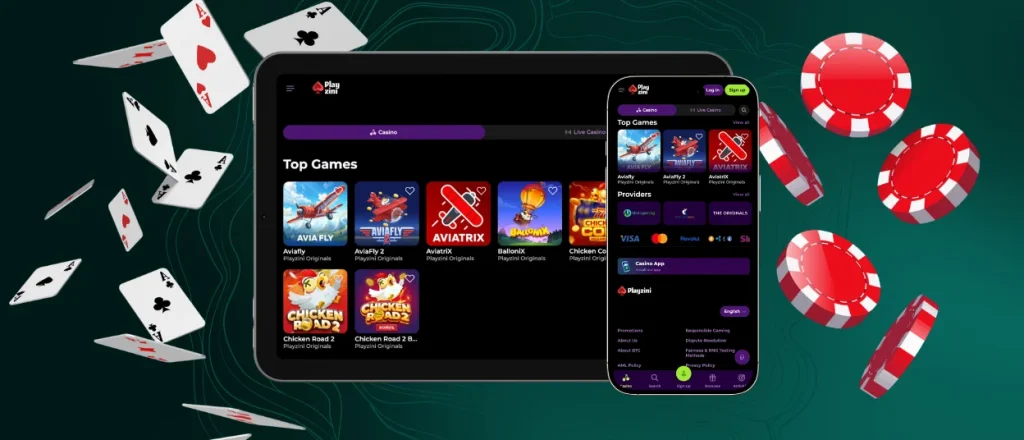
With the Playzini app, members can access their casino account from a smartphone or tablet. Built as a PWA, it supports games, profile tools and payment section access on supported mobile devices.



Benefits of the Mobile Casino
Mobile access to Playzini focuses on faster launch, touchscreen navigation and lighter setup. Inside the Playzini Casino app, members open games, account tools and mobile betting features through a browser-based format.
| Benefit | Details |
| Faster access | Launch the Playzini app from a saved shortcut on the home screen. |
| Easy navigation | Move through menus, buttons and page sections adapted for touchscreen controls. |
| App-style display | Open the platform in a separate app-style window instead of a standard browser tab. |
| Flexible access | Use the home-screen shortcut or open the Playzini website in a compatible mobile browser. |
| Light on storage | Browser-based setup uses less device space than a traditional Android or iOS application. |
Download and Installation
Playzini app download starts on the official site and adds the web application to a device without a traditional installer. Setup steps depend on the selected platform and browser.
For the Playzini download app option, members use the official website instead of a separate store package. Browser-based setup keeps the process tied to the platform and avoids extra installation files.
Android Installation
To create the Android app-style shortcut:
- Launch Chrome and go to the Playzini site.
- Open the three-dot menu in the browser.
- Select “Add to Home Screen.”
- Confirm the action by tapping “Add.”
- Launch Playzini from the home screen or the available application list.
Menu names and positions differ between Android devices. Android setup runs through the Playzini website, so users do not need to look for a separate Playzini APK. After saving the shortcut, users open Playzini from the home screen in one tap. The shortcut also keeps mobile slots close for quick sessions.
iPhone and iPad Setup
To create the iOS app-style shortcut:
- Open the Playzini website in Safari.
- Tap the “Share” button.
- Select “Add to Home Screen.”
- Confirm shortcut creation.
- Open Playzini from the new home-screen icon.
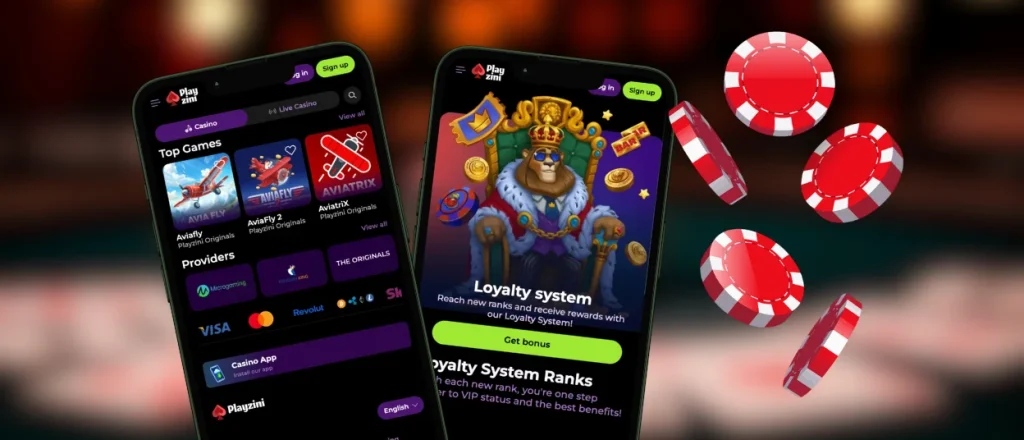
Controls can differ by browser. After setup, the mobile format gives iPhone and iPad users direct access from the home screen. This setup keeps mobile gambling available through Safari without a separate iOS installer.
Playzini in Desktop Browsers
Playzini opens on a desktop or laptop through Chrome, Edge or another compatible browser. Games and account tools remain on the website, so members use desktop access without a separate application.
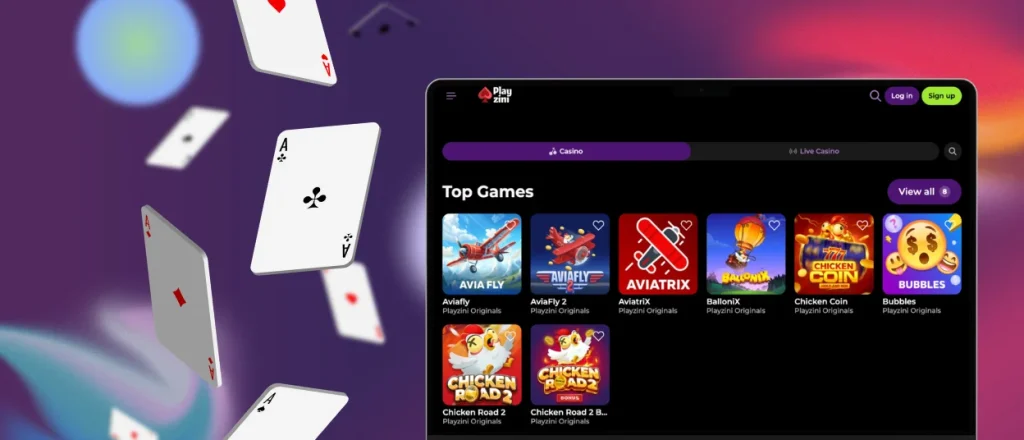
Larger screen space gives members more room for live games, where every detail can influence the outcome. Desktop access suits longer sessions without the tighter layout of a mobile display. On desktop, the Playzini app format keeps access close to the browser while reducing the need for several open casino tabs.
Mobile Gaming Security
The app works as a progressive web app through the official Playzini website. Setup does not require a separate external software package, so access stays tied to the official platform.
Browser permissions control access to device features such as photos or contacts. Login and payment-related pages use HTTPS connections and the current version loads online without manual update files.
Built as the Play Zini app, the platform keeps mobile access connected to the browser environment. This structure helps the Playzini app stay light on storage while keeping all tools available after login.
App and Game Loading Issues
When a page or game does not load correctly, these general checks help identify the cause:
- Whether the internet connection is active and stable.
- Close the Playzini app or browser page, then open it again.
- Confirm that the browser is updated.
- Clear the browser cache.
- Contact customer support when the issue remains unresolved.
These actions help identify common loading issues, but some cases still require support review. This gives users a practical starting point without assuming that the issue comes from Playzini or from a specific device setting.
FAQ
Does One Account Work on Multiple Devices?
Use the same Playzini login on all devices. All your data and progress will be synchronized so nothing gets lost.
How Do I Remove the Playzini App From My Device?
Hold the Playzini icon on the home screen and remove it like any other shortcut. The account remains untouched. To use mobile access again, open the Playzini website in your browser and add the icon back.
Is Customer Support Available in the App?
Support is available through the help section in the mobile version. Open that section to check the current contact options and reach the support team from inside the platform.
Does the Playzini App Consume Significant Mobile Data?
The app does not require a heavy download because it works through the browser. Data use mostly depends on games. Lobby pages and account sections use less traffic, while live tables, video streams and animated slots use more. Wi-Fi is a better choice for long sessions.
Is There a Difference Between the Playzini Desktop and Mobile Game Catalogs?
The game catalog is meant to stay close across desktop and mobile. The main difference is how games open and look on each screen. Live dealer tables, detailed slots and wide game layouts feel more comfortable on desktop. Mobile gives faster access to the same casino sections, but a few titles may appear differently because of device or browser requirements.


